Year - End Offer Is Live — Get limited-time discounts on MCAD + EV Courses. Avail Offer
Tata I Get It - Student Professional Enterprise
i get it search
TATA - Student Professional Enterprise

i GET IT by Tata Technologies
  • About us New
    • About i GET IT
    • Our Programs
      • EngAge Professional Program
      • EngAge Student Program
      • Campus Program
      • Author Program
      • Reseller Program
  • i GET IT For Enterprise
  • Plans and Pricing New
    • All in One Bundles Best Buy
      • Electric Vehicle Certifications        
        • EV – High Voltage, Thermal & Battery Certification Program
        • EV – Advanced Battery Certification Program
      • MCAD Professional Bundle
      • MCAD+EV Professional Bundle
    • EV Subscriptions
      • EV – Essentials
      • EV – Energy Storage System Fundamentals
      • EV – Thermal Management System
      • EV – Battery Pack Design
      • EV – BMS (Battery Management System)
      • EV – High Voltage Systems
    • MCAD Subscriptions
      • Dassault Systems
        • 3D Experience Subscription
        • CATIA V5 Subscription
        • SOLIDWORKS Subscription
      • Siemens Digital Industries
        • Siemens NX PLM Subscription
      • GD&T Subscription
      • Plastics and Molding Subscription
      • ISO GPS Subscription
      • PTC CREO & Wildfire Subscription
      • Autodesk Subscription
  • Insights
    • Business Blogs
    • Tech Blogs
    • Webinars
  • Course Catalog
  • searchigetit search
  • Contact Us
  • Sign In / Sign Up
Sign In / Sign Up Sign In / Sign Up

How to Use Synchronicity in NX 2312 Assemblies
February 28, 2024 2024-11-11 14:20

How to Use Synchronicity in NX 2312 Assemblies

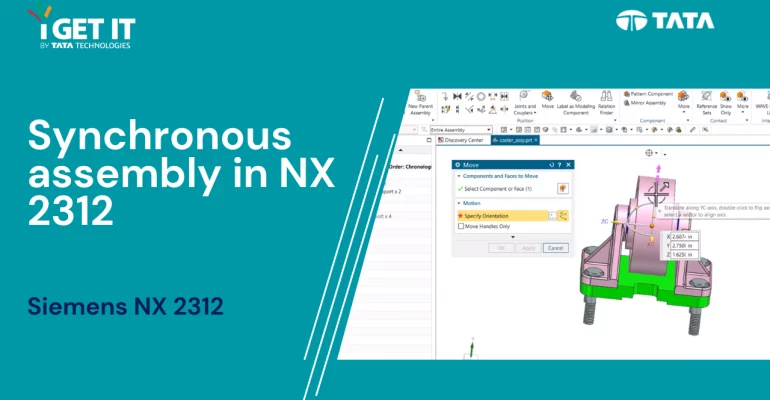
Synchronous assembly in NX 2312
Siemens NX Tech
Prateek Potnis
February 28, 2024
631 views
0 comments

How to Use Synchronicity in NX 2312 Assemblies
Overview

In this TechTip, you will learn how to use Synchronicity in an assembly, in NX 2312.

Synchronicity in an assembly enables to configure the components and chosen facets in various modeling components in a single operation. This is time efficient, as it provides an aid for quick reconfiguring the components of an assembly while analyzing in case of design changes.

Please accept the cookies to view the following video.

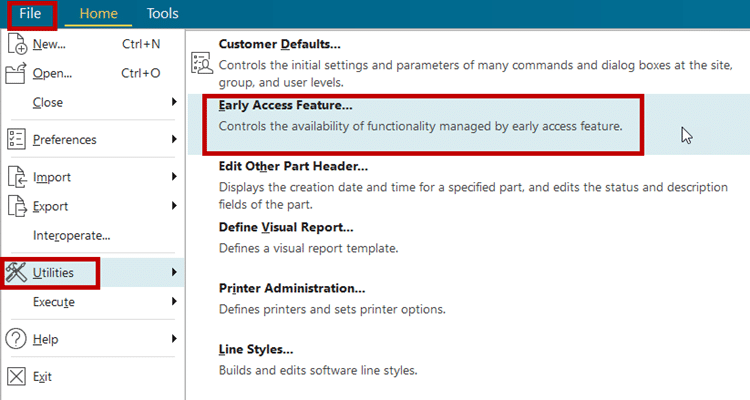
Prerequisites: Check whether the Early Access Feature is On in the Early Access Feature dialog box.

Please follow the below steps to use Synchronicity in an NX 2312 Assemblies

Step 1

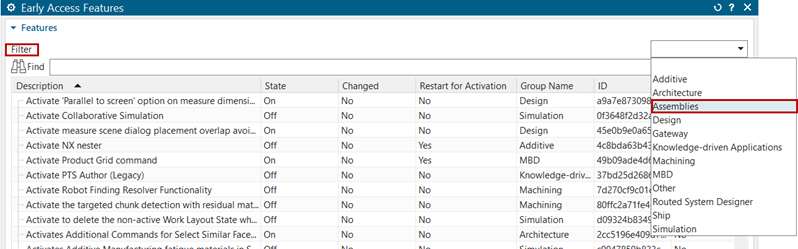
Go to Files > Utilities > Early Access Feature > Assemblies command:

step1
Step 2

Select Assemblies in the drop down Filter as shown in figure.

step 2
Step 3

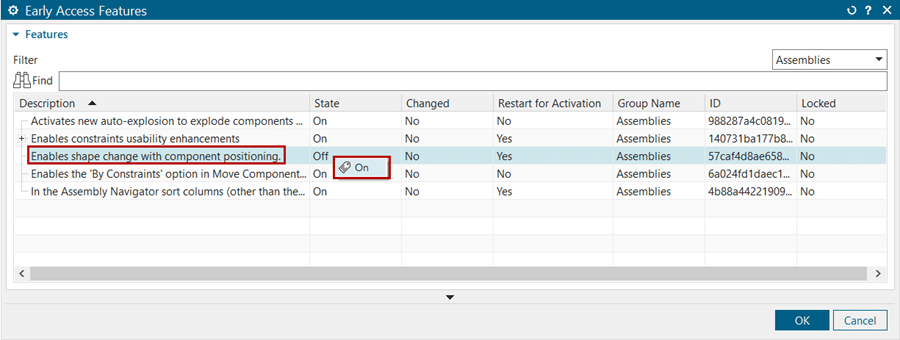
Once Assemblies is selected the features will appear, in this we have to make changes in Enables shape with component positioning it’s State will be Off we have to right click on it and make it On.

step3
Step 4

After making the changes restart the NX 2312, then the changes will get applied.

Harnessing Synchronicity by using Label as Modeling Component command

Step 1

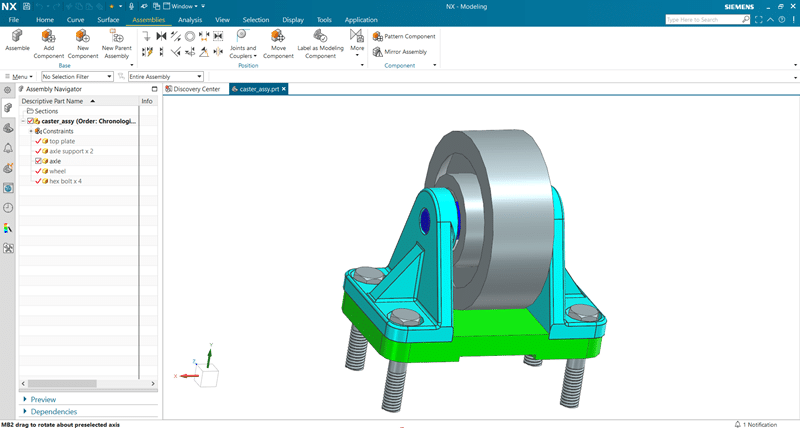
Open the caster_assy.prt in the modeling interface.

step4a
Step 2

Go to Assemblies > Position > Label as Modeling Component command.

step4b
Step 3

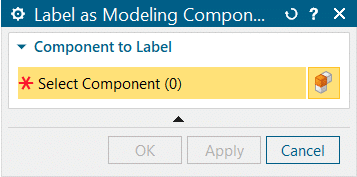
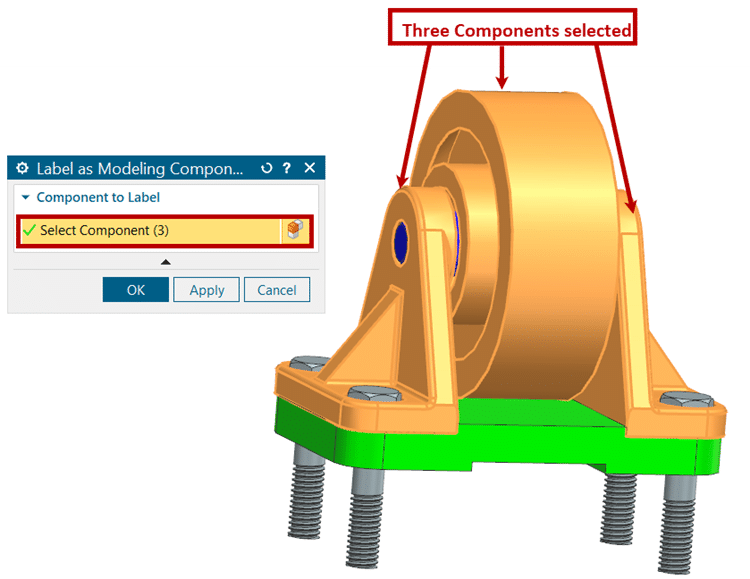
Lable as Modeling Component feature dialogue box will appear.

step4c
Step 4

In the Select Component pane, select the components as shown:

step4d

Click OK after selecting the component.

Step 5

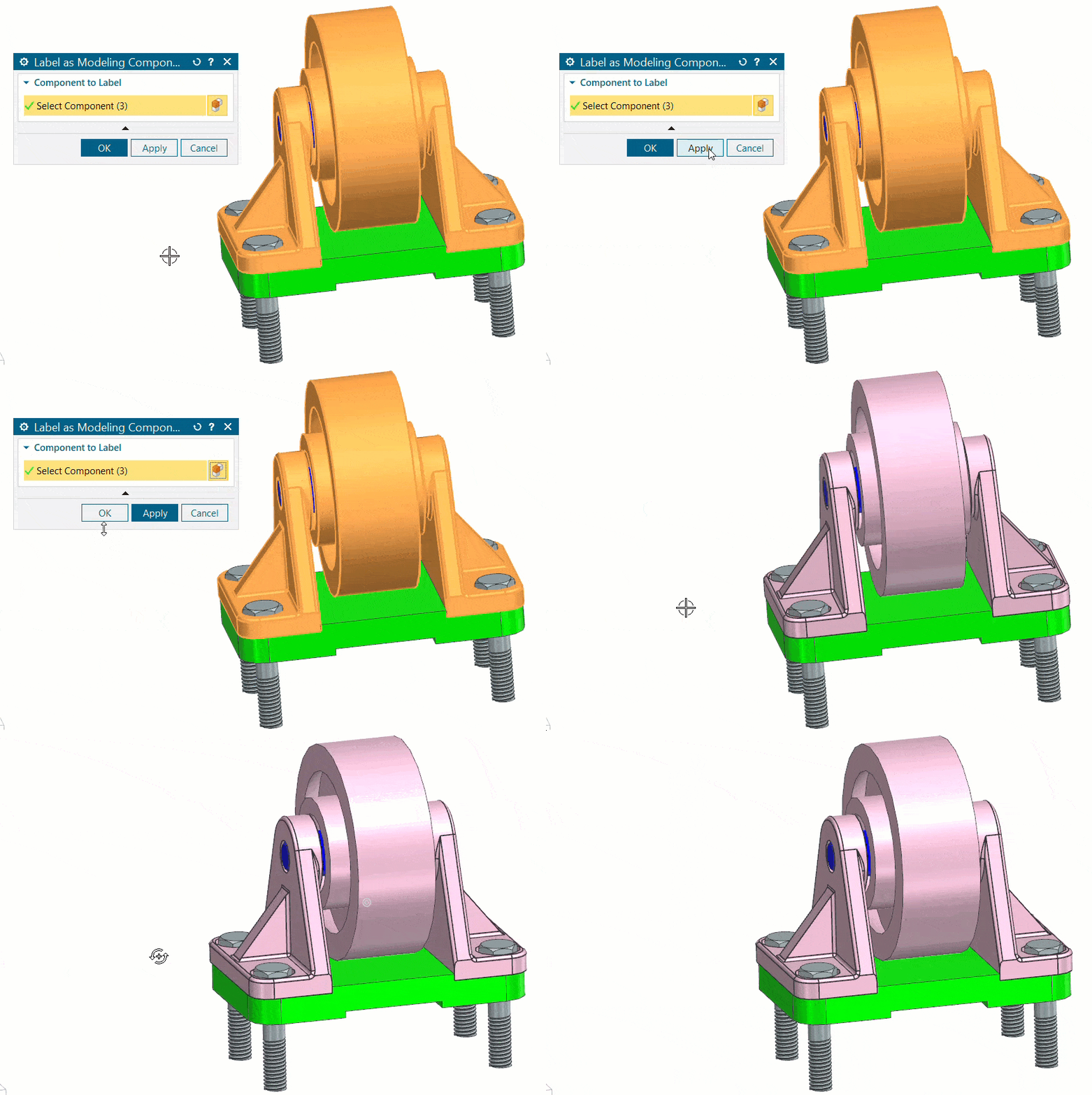
Once you click OK in the dialogue box, the selected component’s color changes, as shown below. This indicates that the selected components are movable now.

step5
Step 6

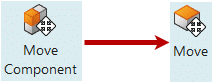
Now, if you observe the Position Section of Assemblies, Move Component command has been replaced by Move feature. This change takes place after selecting the components in Label as Modeling Component.

step6
Step 7

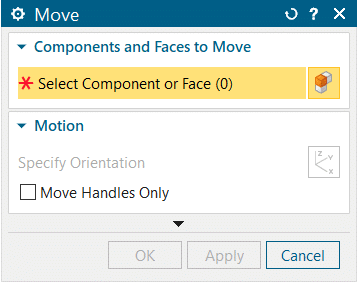
Once you select Move command, its feature dialogue box will appear as shown:

step7
Step 8

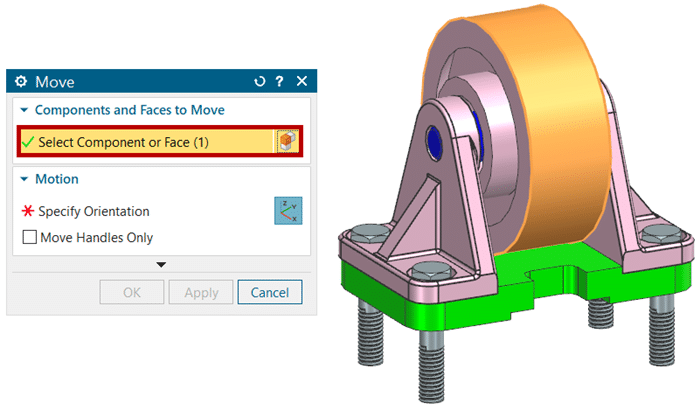
In Components and Faces to Move section, select the component which you want to move:

step8
Step 9

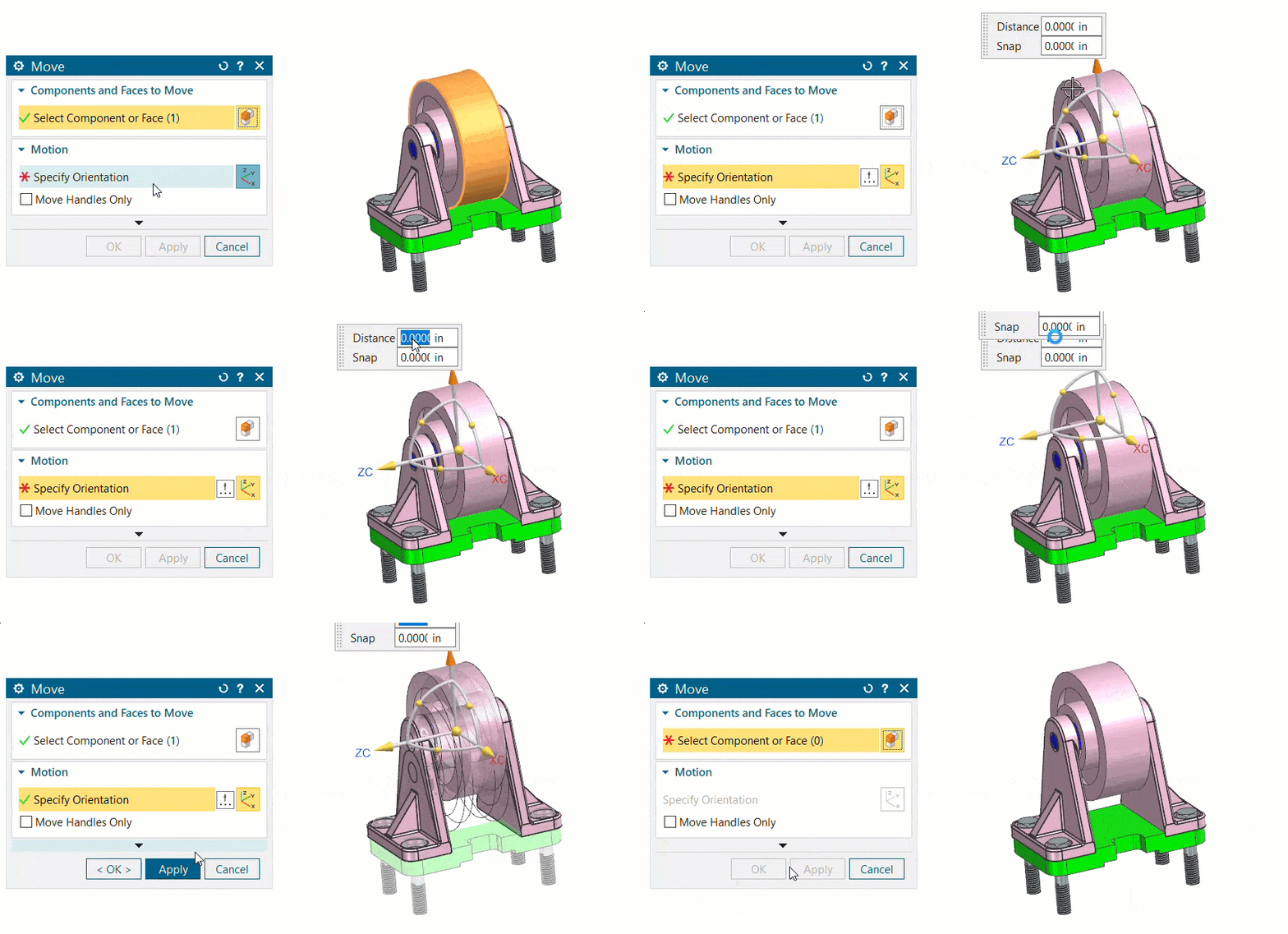
In Motion section, select the components direction in which it should move:

step9
Step 10

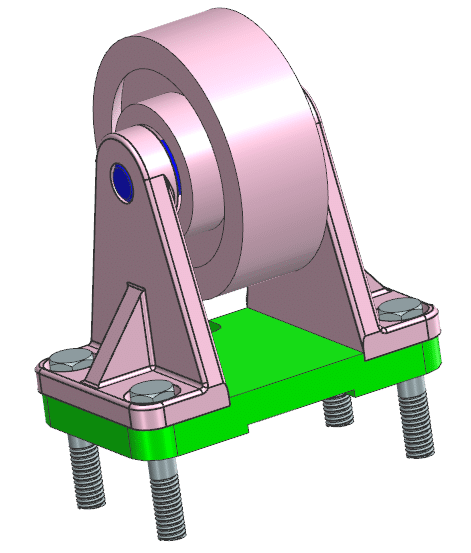
Here you can see that the middle component has been lifted up by one Inch and both the side components have been adjusted their dimensions accordingly, as there are assembly constraints between them.

step10
Step 11

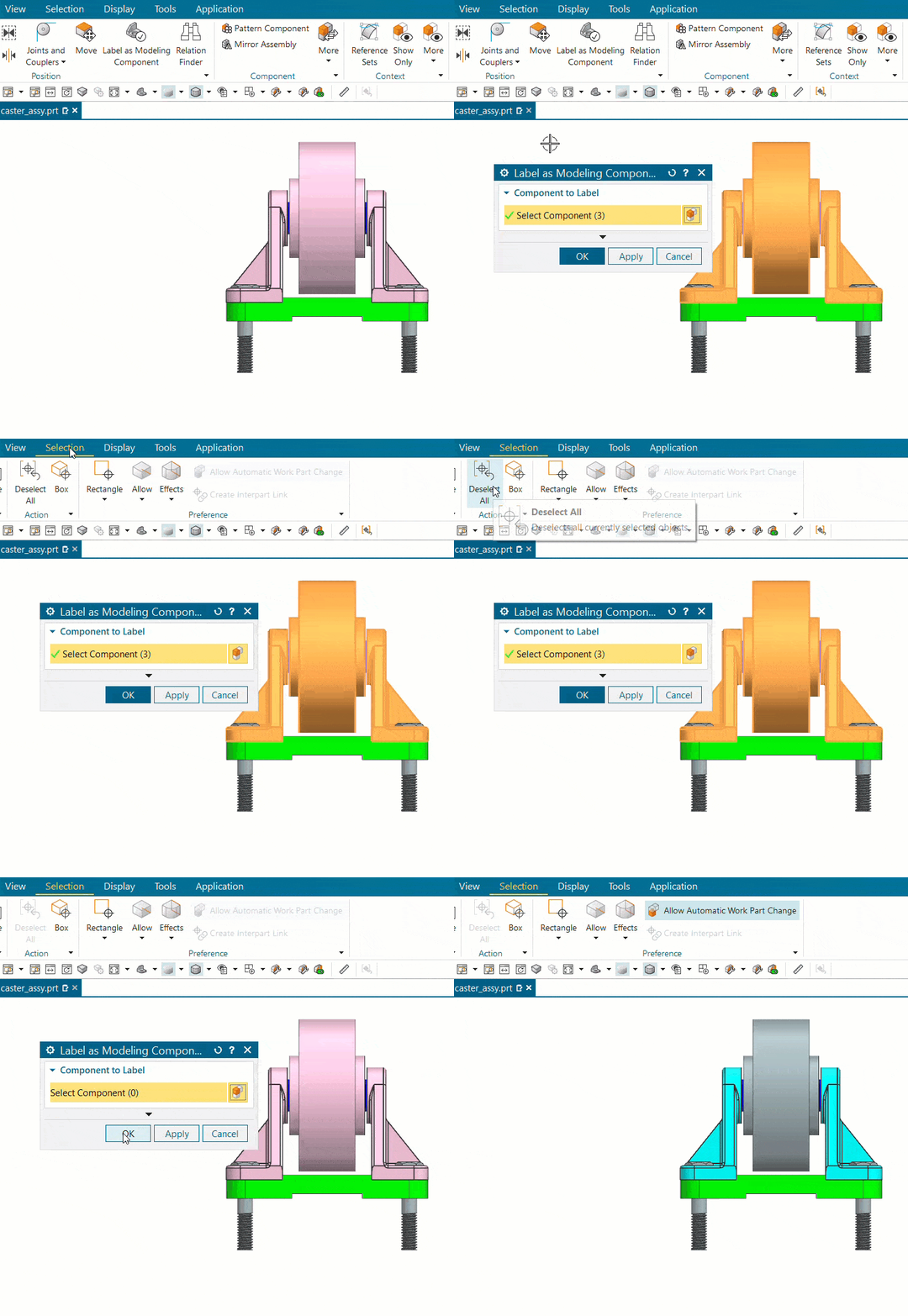
To deselect the labelled components from the Label as Modeling Component, select on the command, go to Selection tab then click on Deselect All option and click OK, as shown:

step11

About i Get IT

i GET IT is our Tata Technologies eLearning solution designed to teach engineers how to be better in using today’s leading MCAD (Mechanical Computer Aided Design) applications and design skills.

For more tech tips and in-depth eLearning for Siemens NX, including this and new courses on other design solutions, please visit i GET IT. You can sign up and get FREE Subscription of our informative Newsletter.

Start your Upskilling Journey Now! Visit i GET IT Plans Page

If you have any questions, please reach out to iproducts@tatatechnologies.com or igetitsupport@tatatechnologies.com for help. 

If you like our Tech Blogs do share them using following share this post icon.

Share this post
Prateek Potnis
Prateek Potnis is a CAD expert and technical content writer, specializing in crafting authentic content focused on mCAD software solutions. With a graduation degree in Mechanical Engineering and extensive experience in the field of computer-aided design, he brings a wealth of knowledge and expertise to his writing endeavors.
How Sketch Region Type Selection Filter Works | CREO Parametric 10.0
What skills are required to be an Electric Vehicle (EV) Engineer?

Related Posts

What is Product Lifecycle Management? PLM explained

What is PLM? – Product Lifecycle Management [Detailed Guide]

October 9, 2025
219 views
Lead-Acid vs. Lithium-Ion Batteries_banner image

Lead-Acid vs. Lithium-Ion Batteries: Key Differences & Best Uses

June 13, 2025
532 views
Top AutoCAD 3D Commands & Shortcuts-banner image

Top AutoCAD 3D Commands & Shortcuts with Examples

April 9, 2025
2,201 views
what is engineering mechanics - blog banner image

What is Engineering Mechanics? – Introduction 101

March 10, 2025
1,485 views
inventor blog banner image

How to Create Stitch Weld in Weldments using Autodesk Inventor?

November 15, 2024
610 views

Find

Categories

  • 3DEXPERIENCE (4)
  • Aerospace Engineering (1)
  • AutoCAD (1)
  • AUTODESK INVENTOR (4)
  • Business (16)
  • CATIA V5 (5)
  • EV (3)
  • GD&T (1)
  • General (1)
  • General (10)
  • PLM (1)
  • PTC CREO (5)
  • Siemens NX (7)
  • SOLIDWORKS (8)
  • Tech (46)

Latest Posts

What is Product Lifecycle Management? PLM explained
PLM
What is PLM? – Product Lifecycle Management [Detailed Guide]
October 9, 2025
SOLIDWORKS certification roadmap image 2025 — from CSWA to CSWE, showing training path, skills level, and i GET IT platform recommendation
Business
SOLIDWORKS Certification: Top Courses, Prep Tips & Salaries
July 29, 2025
Top Online Automotive Design Engineer Courses
Business
Top Automotive Design Engineer Courses by Tata Technologies
July 15, 2025

Popular Tags

3DEXPERIENCE ACES Aerospace Aircraft Cabin Assembly autocad autodesk Autodesk Inventor Business CAD CAD courses CAD Drawings CAD Drawing view CAM cam and follower Career cars CATIA V5 catiav5 Chamfer corner relief CREO design engineering Design Engineers dimensioning Engineering Education ev EV Engineer GD&T inventor Mechanical engineering NX NX 2306 Online Certification product design PTC Sketcher Sketching Solid Combine solidworks Spinal Bend tech tech tips threaded stud work Upskilling
App Download
Facebook Twitter Youtube Linkedin

Course Topics

EV Design
NX
CATIA V5
3DEXPERIENCE CATIA
SOLIDWORKS
PTC Creo
Autodesk Training
Plastic Part
GD&T
ISO GPS
And more ...
EV Design
CATIA V5
SOLIDWORKS
Autodesk Training
GD&T
NX
3DEXPERIENCE CATIA
PTC Creo
AutoCAD
ISO GPS
Plastic Part
And more ...

About

About Us
Contact Us
Blogs

Programs

Campus Program
Author Program
Reseller Program

Support

Help
Privacy Policy
Terms of Use
Cookie Policy

close-window chat
cosmos

Cosmos

AI powered chatbot

close-cosmos
Need help? Talk to Us

Hey! I am here to Help You!

User Details

Please enter your details so we can assist you more efficiently.

Full Name is required

Enter a valid Email ID

Please select a profile

Select batch size

    Country is required

    +91

    Invalid Contact Number

    You must accept the terms to continue.

    SalesBot AI Assistant AI Powered Chatbot
    SalesBot Voice Assistant AI Powered Calling
    00:00
    Mute
    End Call
    i GET IT by Tata Technologies
    • About us New
      • About i GET IT
      • Our Programs
        • EngAge Professional Program
        • EngAge Student Program
        • Campus Program
        • Author Program
        • Reseller Program
    • i GET IT For Enterprise
    • Plans and Pricing New
      • All in One Bundles Best Buy
        • Electric Vehicle Certifications        
          • EV – High Voltage, Thermal & Battery Certification Program
          • EV – Advanced Battery Certification Program
        • MCAD Professional Bundle
        • MCAD+EV Professional Bundle
      • EV Subscriptions
        • EV – Essentials
        • EV – Energy Storage System Fundamentals
        • EV – Thermal Management System
        • EV – Battery Pack Design
        • EV – BMS (Battery Management System)
        • EV – High Voltage Systems
      • MCAD Subscriptions
        • Dassault Systems
          • 3D Experience Subscription
          • CATIA V5 Subscription
          • SOLIDWORKS Subscription
        • Siemens Digital Industries
          • Siemens NX PLM Subscription
        • GD&T Subscription
        • Plastics and Molding Subscription
        • ISO GPS Subscription
        • PTC CREO & Wildfire Subscription
        • Autodesk Subscription
    • Insights
      • Business Blogs
      • Tech Blogs
      • Webinars
    • Course Catalog
    • searchigetit search
    • Contact Us
    • Sign In / Sign Up
    Styled Form
    Image description

    Show your Interest

    Submit details and we will get back to you!!!

    SME
    Image description
    Join our Author, Campus & Reseller Program

    Submit details and we will get back to you!!!

    Form Submission
    Image description
    Tell Us Where to Send the Syllabus?

    Submit details and we will get back to you!!!

    Form Submission
    LMS
    logo

    Autodesk Training Subscription

    1010

    OR

    Verify email

    Pay now, get full term access


    Already have an account? Sign In

    By clicking the button above, you accept our terms of use and privacy policy.

    logo

    Autodesk Training Subscription

    1010

    OR

    Verify email

    Start your 3 days free trial now


    Already have an account? Sign In

    By clicking the button above, you accept our terms of use and privacy policy.

    OTP Verification

    Resend OTP in
    00:00
    Resend OTP

    OTP Verification

    Resend OTP in
    00:00
    Resend OTP
    LMS
    logo

    Autodesk Training Subscription

    1010

    OR

    Verify email

    (Ensure popup is allowed for this site)

    Pay now, get full term access

    Already have an account? Sign In

    By clicking the button above, you accept our terms of use and privacy policy.

    logo

    Autodesk Training Subscription

    1010

    OR

    Verify email

    (Ensure popup is allowed for this site)

    Start your 3 days free trial now

    Already have an account? Sign In

    By clicking the button above, you accept our terms of use and privacy policy.

    OTP Verification

    Resend OTP in
    00:00
    Resend OTP

    OTP Verification

    Resend OTP in
    00:00
    Resend OTP
    LMS
    logo_w
    d

    Start learning now

    We provide an easy to use interface with adaptive content and clear direction. You'll find bitesize practical information from experts who are industry leaders in their field.

    logo

    Sign In

    Have Organization Sign In?  Use Single Sign On

    Forgot Password?

    (Ensure popup is allowed for this site)

    Don't have an account? Sign Up

    OR

    Privacy Notice
    Term of service
    logo

    Sign Up

    Already a user? Sign In

    Verify

    (Ensure popup is allowed for this site)

    OR


    Have Organization Sign In?   Use Single Sign On

    By Registering you agree to the Terms of Use and Privacy Policy.

    logo

    Single Sign On

    If your company has single sign-on set-up with i GET IT, enter your company's web address to access your unique login page. The format needs to be as such: "domainname.com".

    (Ensure popup is allowed for this site)

    Not an enterprise user?Sign In
    Privacy Notice
    Term of service
    logo

    Forgot Password

    Enter your email and we'll send you instructions on how to reset your password.

    If you are still having trouble this article might help

    Privacy Notice
    Term of service

    OTP Verification

    Resend OTP in
    00:00
    Resend OTP
    Styled Form
    Image description

    Avail Year - End Offers on Courses

    Submit details and we will get back to you!!!
    Avail Year - End Offer