
Year - End Offer Is Live — Get limited-time discounts on MCAD + EV Courses. Avail Offer
Tata I Get It - Student Professional Enterprise
i get it search
TATA - Student Professional Enterprise

i GET IT by Tata Technologies
  • About us New
    • About i GET IT
    • Our Programs
      • EngAge Professional Program
      • EngAge Student Program
      • Campus Program
      • Author Program
      • Reseller Program
  • i GET IT For Enterprise
  • Plans and Pricing New
    • All in One Bundles Best Buy
      • Electric Vehicle Certifications        
        • EV – High Voltage, Thermal & Battery Certification Program
        • EV – Advanced Battery Certification Program
      • MCAD Professional Bundle
      • MCAD+EV Professional Bundle
    • EV Subscriptions
      • EV – Essentials
      • EV – Energy Storage System Fundamentals
      • EV – Thermal Management System
      • EV – Battery Pack Design
      • EV – BMS (Battery Management System)
      • EV – High Voltage Systems
    • MCAD Subscriptions
      • Dassault Systems
        • 3D Experience Subscription
        • CATIA V5 Subscription
        • SOLIDWORKS Subscription
      • Siemens Digital Industries
        • Siemens NX PLM Subscription
      • GD&T Subscription
      • Plastics and Molding Subscription
      • ISO GPS Subscription
      • PTC CREO & Wildfire Subscription
      • Autodesk Subscription
  • Insights
    • Business Blogs
    • Tech Blogs
    • Webinars
  • Course Catalog
  • searchigetit search
  • Contact Us
  • Sign In / Sign Up
Sign In / Sign Up Sign In / Sign Up

How to Adjust Lighting & Override Appearance Indicator in Autodesk Inventor
July 12, 2023 2023-09-07 11:16

How to Adjust Lighting & Override Appearance Indicator in Autodesk Inventor

change direction of lighting in autodesk inventor
AUTODESK INVENTOR Tech
Manya
July 12, 2023
806 views
0 comments

How to Adjust Lighting & Override Appearance Indicator in Autodesk Inventor
In the world of Autodesk Inventor, mastering the art of lighting is crucial to create visually stunning designs. Understanding how to control and change the direction of lighting can significantly enhance the realism and presentation of your 3D models. In this blog post, we will explore step-by-step techniques and primary methods to alter the direction of lighting in Autodesk Inventor. Whether you are a beginner or an experienced user, this guide will equip you with the skills needed to elevate your designs to the next level. Join us as we unlock the secrets of manipulating lighting and bring your models to life. 

Recently we posted “How To Get Ortho Views & Predefined View Indicators from View Cubes” and now we are sharing two new tips from our “120 Autodesk Inventor Tips” vault.

Our Autodesk Subject Matter Expert from i GET IT Learning created these 120 short tech tips to present at Autodesk University. Till now we have shared the first 22 tips on PLM Tech Talk and now we are sharing the next 2. To get early access of tips visit myigetit.com and subscribe to gain access to many other Tips.

Steps to Change Direction of Lighting in Autodesk Inventor

Follow the Video and Steps to Know More -
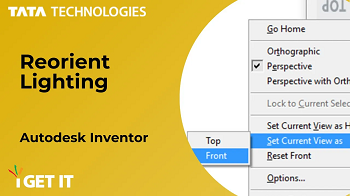
#23 Reorient Lighting - 120 Autodesk Inventor Tips

Lighting plays a fundamental role in shaping the atmosphere and enhancing the functionality of any environment. Whether it’s an architectural project, interior design, or a visual presentation, the way we illuminate spaces can greatly impact the overall experience and perception. With the advent of advanced technologies and design software, professionals in the fields of architecture, engineering, and design can now harness the power of tools like Autodesk to reorient lighting and transform the way we interact with our surroundings.

Become the master of such technical designs and plans with our Autodesk Inventor training courses.

Follow these steps to reorient the lighting in your design to the desired direction:

Step 1

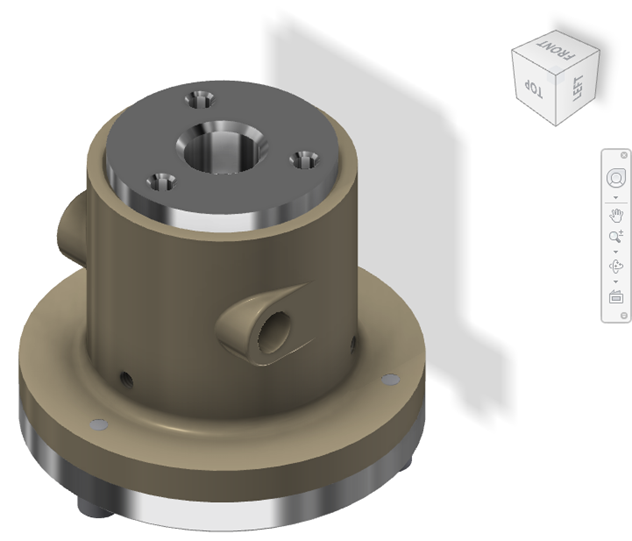
Wrong Ground Shadow Direction

Wrong Ground Shadow Direction

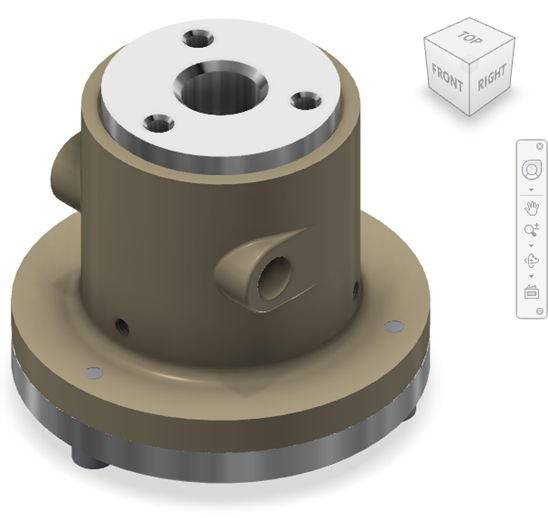
  • Orient model view to look at desired “Front” of model

Step 2

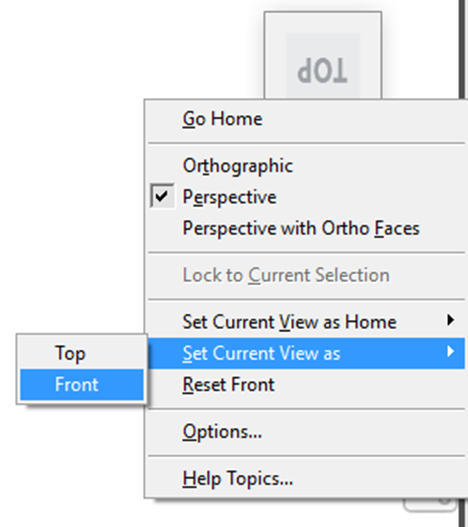
  • Right-Click View Cube > Set Current View As > Front

Step 3

adjust lighting in autodesk inventor

Correct Ground Shadow Direction

Check out our complete catalog of courses for engineering students and professionals. Stay tuned to i GET IT tech blog for more such tips.

Override Appearance Indicator in Autodesk Inventor
In this blog post, we will dive into the world of Autodesk Inventor and explore the step-by-step process of overriding the appearance indicator. Whether you are a designer, engineer, or enthusiast, this guide will empower you to take full control of the appearance of your models and unleash your creativity. Join us as we unravel the secrets of overriding the appearance indicator in Autodesk Inventor and unlock a world of endless design possibilities.

Steps to Override Appearance Indicator in Autodesk Inventor
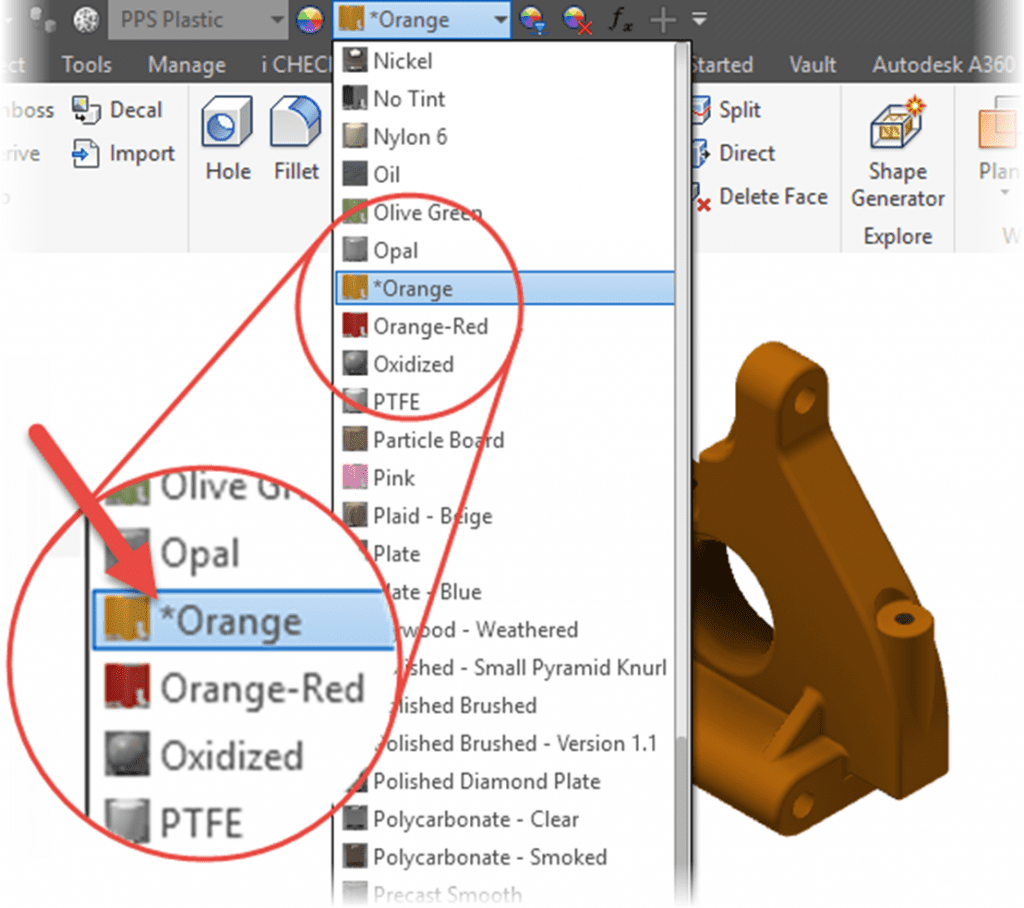
#24 Appearance Override Indicator

Asterisk * next to Appearance name in Appearance dropdown list indicates that this appearance color is Overriding the MaterialAppearance


Override Appearance Indicator

About i GET IT

i GET IT is our Tata Technologies eLearning solution designed to teach engineers how to be better in using today’s leading MCAD (Mechanical Computer Aided Design) applications and design skills

For more tech tips and in-depth eLearning for Autodesk, including this and new courses on other design solutions, please visit https://www.myigetit.com. You can sign up and get FREE Subscription of our informative Newsletter.

Start your Upskilling Journey Now!

If you should have any questions, please reach out to iproducts@tatatechnologies.com or igetitsupport@tatatechnologies.com for help.

autodesk, inventor
Share this post
Manya
Manya thrives at the intersection of words and technology. She is a passionate writer and specializes in skill development and career exploration related content in mechanical engineering field.
Dimensioning Tips To Move/Copy Body in SolidWorks
How to Create Corner Chamfer | PTC CREO 10.0

Related Posts

What is Product Lifecycle Management? PLM explained

What is PLM? – Product Lifecycle Management [Detailed Guide]

October 9, 2025
219 views
Lead-Acid vs. Lithium-Ion Batteries_banner image

Lead-Acid vs. Lithium-Ion Batteries: Key Differences & Best Uses

June 13, 2025
532 views
Top AutoCAD 3D Commands & Shortcuts-banner image

Top AutoCAD 3D Commands & Shortcuts with Examples

April 9, 2025
2,201 views
what is engineering mechanics - blog banner image

What is Engineering Mechanics? – Introduction 101

March 10, 2025
1,485 views
inventor blog banner image

How to Create Stitch Weld in Weldments using Autodesk Inventor?

November 15, 2024
610 views

Find

Categories

  • 3DEXPERIENCE (4)
  • Aerospace Engineering (1)
  • AutoCAD (1)
  • AUTODESK INVENTOR (4)
  • Business (16)
  • CATIA V5 (5)
  • EV (3)
  • GD&T (1)
  • General (10)
  • General (1)
  • PLM (1)
  • PTC CREO (5)
  • Siemens NX (7)
  • SOLIDWORKS (8)
  • Tech (46)

Latest Posts

What is Product Lifecycle Management? PLM explained
PLM
What is PLM? – Product Lifecycle Management [Detailed Guide]
October 9, 2025
SOLIDWORKS certification roadmap image 2025 — from CSWA to CSWE, showing training path, skills level, and i GET IT platform recommendation
Business
SOLIDWORKS Certification: Top Courses, Prep Tips & Salaries
July 29, 2025
Top Online Automotive Design Engineer Courses
Business
Top Automotive Design Engineer Courses by Tata Technologies
July 15, 2025

Popular Tags

3DEXPERIENCE ACES Aerospace Aircraft Cabin Assembly autocad autodesk Autodesk Inventor Business CAD CAD courses CAD Drawings CAD Drawing view CAM cam and follower Career cars CATIA V5 catiav5 Chamfer corner relief CREO design engineering Design Engineers dimensioning Engineering Education ev EV Engineer GD&T inventor Mechanical engineering NX NX 2306 Online Certification product design PTC Sketcher Sketching Solid Combine solidworks Spinal Bend tech tech tips threaded stud work Upskilling
App Download
Facebook Twitter Youtube Linkedin

Course Topics

EV Design
NX
CATIA V5
3DEXPERIENCE CATIA
SOLIDWORKS
PTC Creo
Autodesk Training
Plastic Part
GD&T
ISO GPS
And more ...
EV Design
CATIA V5
SOLIDWORKS
Autodesk Training
GD&T
NX
3DEXPERIENCE CATIA
PTC Creo
AutoCAD
ISO GPS
Plastic Part
And more ...

About

About Us
Contact Us
Blogs

Programs

Campus Program
Author Program
Reseller Program

Support

Help
Privacy Policy
Terms of Use
Cookie Policy

close-window chat
cosmos

Cosmos

AI powered chatbot

close-cosmos
Need help? Talk to Us

Hey! I am here to Help You!

User Details

Please enter your details so we can assist you more efficiently.

Full Name is required

Enter a valid Email ID

Please select a profile

Select batch size

    Country is required

    +91

    Invalid Contact Number

    You must accept the terms to continue.

    SalesBot AI Assistant AI Powered Chatbot
    SalesBot Voice Assistant AI Powered Calling
    00:00
    Mute
    End Call
    i GET IT by Tata Technologies
    • About us New
      • About i GET IT
      • Our Programs
        • EngAge Professional Program
        • EngAge Student Program
        • Campus Program
        • Author Program
        • Reseller Program
    • i GET IT For Enterprise
    • Plans and Pricing New
      • All in One Bundles Best Buy
        • Electric Vehicle Certifications        
          • EV – High Voltage, Thermal & Battery Certification Program
          • EV – Advanced Battery Certification Program
        • MCAD Professional Bundle
        • MCAD+EV Professional Bundle
      • EV Subscriptions
        • EV – Essentials
        • EV – Energy Storage System Fundamentals
        • EV – Thermal Management System
        • EV – Battery Pack Design
        • EV – BMS (Battery Management System)
        • EV – High Voltage Systems
      • MCAD Subscriptions
        • Dassault Systems
          • 3D Experience Subscription
          • CATIA V5 Subscription
          • SOLIDWORKS Subscription
        • Siemens Digital Industries
          • Siemens NX PLM Subscription
        • GD&T Subscription
        • Plastics and Molding Subscription
        • ISO GPS Subscription
        • PTC CREO & Wildfire Subscription
        • Autodesk Subscription
    • Insights
      • Business Blogs
      • Tech Blogs
      • Webinars
    • Course Catalog
    • searchigetit search
    • Contact Us
    • Sign In / Sign Up
    Styled Form
    Image description

    Show your Interest

    Submit details and we will get back to you!!!

    SME
    Image description
    Join our Author, Campus & Reseller Program

    Submit details and we will get back to you!!!

    Form Submission
    Image description
    Tell Us Where to Send the Syllabus?

    Submit details and we will get back to you!!!

    Form Submission
    LMS
    logo

    Autodesk Training Subscription

    1010

    OR

    Verify email

    Pay now, get full term access


    Already have an account? Sign In

    By clicking the button above, you accept our terms of use and privacy policy.

    logo

    Autodesk Training Subscription

    1010

    OR

    Verify email

    Start your 3 days free trial now


    Already have an account? Sign In

    By clicking the button above, you accept our terms of use and privacy policy.

    OTP Verification

    Resend OTP in
    00:00
    Resend OTP

    OTP Verification

    Resend OTP in
    00:00
    Resend OTP
    LMS
    logo

    Autodesk Training Subscription

    1010

    OR

    Verify email

    (Ensure popup is allowed for this site)

    Pay now, get full term access

    Already have an account? Sign In

    By clicking the button above, you accept our terms of use and privacy policy.

    logo

    Autodesk Training Subscription

    1010

    OR

    Verify email

    (Ensure popup is allowed for this site)

    Start your 3 days free trial now

    Already have an account? Sign In

    By clicking the button above, you accept our terms of use and privacy policy.

    OTP Verification

    Resend OTP in
    00:00
    Resend OTP

    OTP Verification

    Resend OTP in
    00:00
    Resend OTP
    LMS
    logo_w
    d

    Start learning now

    We provide an easy to use interface with adaptive content and clear direction. You'll find bitesize practical information from experts who are industry leaders in their field.

    logo

    Sign In

    Have Organization Sign In?  Use Single Sign On

    Forgot Password?

    (Ensure popup is allowed for this site)

    Don't have an account? Sign Up

    OR

    Privacy Notice
    Term of service
    logo

    Sign Up

    Already a user? Sign In

    Verify

    (Ensure popup is allowed for this site)

    OR


    Have Organization Sign In?   Use Single Sign On

    By Registering you agree to the Terms of Use and Privacy Policy.

    logo

    Single Sign On

    If your company has single sign-on set-up with i GET IT, enter your company's web address to access your unique login page. The format needs to be as such: "domainname.com".

    (Ensure popup is allowed for this site)

    Not an enterprise user?Sign In
    Privacy Notice
    Term of service
    logo

    Forgot Password

    Enter your email and we'll send you instructions on how to reset your password.

    If you are still having trouble this article might help

    Privacy Notice
    Term of service

    OTP Verification

    Resend OTP in
    00:00
    Resend OTP
    Styled Form
    Image description

    Avail Year - End Offers on Courses

    Submit details and we will get back to you!!!

    Avail Year - End Offer